
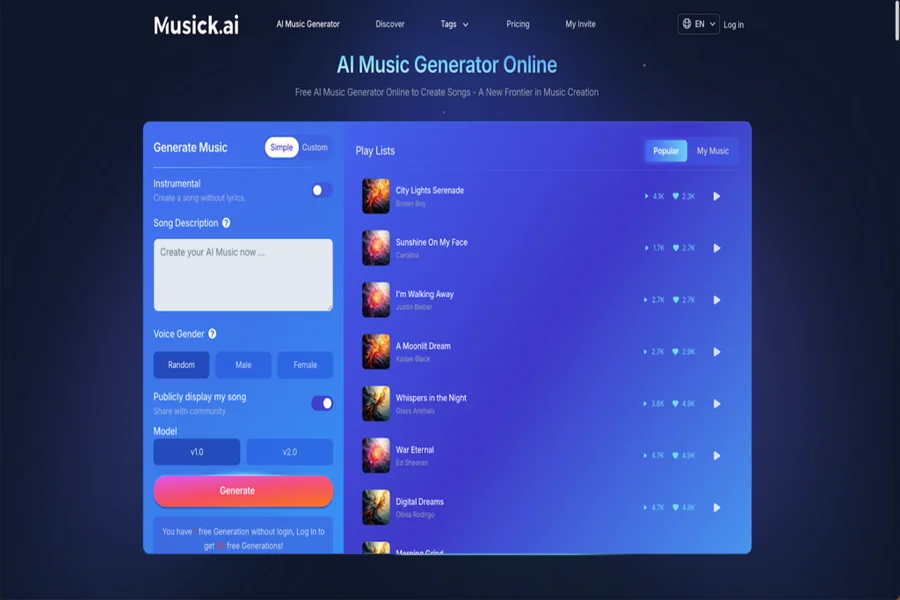
Making a short film or web drama with no money used to mean bad background music, awkward silences, or worse — copyright strikes. That’s no longer the case. AI Music Generator like Musick AI have changed what’s possible for independent creators who need emotionally resonant soundtracks without spending anything near a professional budget. This guide walks through a practical, task-by-task workflow for student filmmakers and short drama directors who want great audio on a shoestring.
I. Start With the Script: Let a Large Language Model Do the Heavy Lifting
Before any music is generated, the script needs to exist. Large language models — ChatGPT, Claude, Gemini — are genuinely good at generating structured short drama scripts when given clear prompts.
Tell the model the genre, runtime, number of characters, and emotional arc. For example: “Write a 10-minute suspense short film script for two characters. The story builds from unease to confrontation and ends on an ambiguous note.” Most LLMs will return a scene-by-scene breakdown with dialogue, stage directions, and emotional cues built in.
Those emotional cues matter. They become the brief for every piece of music generated later. Log them: Scene 1 — tense, slow build. Scene 3 — sudden shock. Scene 5 — melancholic resolution. This becomes your music map.
II. Map Your Scenes to Emotions Before Touching Any Music Tool
Why Emotional Mapping Saves Time
Jumping straight into a music generator without a plan leads to mismatched tracks and wasted generations. Spend ten minutes creating a simple scene-by-emotion table before opening any tool.
A Simple Scene Table
| Scene | Duration | Mood | Instrumentation Feel |
| Opening | 0:00–0:45 | Mysterious, slow | Sparse strings, low piano |
| Rising tension | 1:00–2:30 | Suspenseful | Staccato strings, silence gaps |
| Climax | 3:00–3:45 | Intense, urgent | Full percussion, brass |
| Aftermath | 4:00–5:00 | Sad, reflective | Solo piano or guitar |
This table becomes the exact brief fed into Musick AI. The more specific the prompt, the more useful the output.
III. Generating Background Music With Musick AI
The Instrumental Mode Is the Key Feature
For short films and web dramas, background music almost always needs to be instrumental — no vocals competing with dialogue. Musick AI offers a dedicated Instrumental toggle that creates songs without lyrics, which is exactly what filmmakers need.
The workflow on Musick AI is straightforward: choose Instrumental mode, describe the style and mood in the text prompt box (e.g., “suspenseful dark orchestral piece with slow-building tension, sparse piano and low strings”), and generate. The platform accepts genre references, mood descriptors, tempo feelings, and instrument preferences.
Generating Across Three Core Film Moods
Suspense/Thriller: Use prompts like “slow build dark atmosphere, minimal instrumentation, eerie silence gaps, suspense orchestral”. The goal is space — music that feels like something is about to happen.
Upbeat/Light: For comedic or feel-good scenes, try “upbeat pop, bright and airy, energetic but not aggressive, light percussion”. These tracks work well for montage sequences or opening credits.
Sad/Reflective: Prompts like “melancholic solo piano, slow tempo, emotional resolution, quiet strings” tend to produce the kind of music that works over slow-motion endings or emotional dialogue scenes.
Musick AI generates original, royalty-free tracks — meaning they can be used on YouTube, Instagram, TikTok, and similar platforms without copyright concerns.
IV. Sourcing Sound Effects: Free Libraries Worth Bookmarking
Background music is only half of a film’s audio. Sound effects — footsteps, doors, ambient city noise, rain, phones ringing — are equally important and entirely separate.
Several free libraries cover this well:
- org — Community-uploaded sounds under Creative Commons licenses. Search by keyword, filter by license type.
- Pixabay Sound Effects — Clean, curated library with free commercial-use audio clips.
- BBC Sound Effects Archive — Thousands of high-quality effects available for personal, educational, and some commercial use.
- ZapSplat — Large library with a free tier, including foley, ambience, and UI sounds.
Download what matches each scene, organize by folder (INT/EXT, scene number), and keep file names descriptive. This makes the editing session faster.
V. The AI Song Maker Workflow in Practice
Batch Generation, Not Single Attempts
One practical tip: don’t rely on a single generated track per scene. The AI Music generation process involves some variation between outputs, so generating two or three versions of the same brief gives options. Pick the one that fits the picture edit.
Matching Music to Picture
Once tracks are downloaded, import them into any free video editor — DaVinci Resolve, CapCut, or iMovie. The key editing move is trimming the music to match scene length, not the other way around. Most AI-generated tracks have natural loop points or fade-out sections that can be cut cleanly.
For scenes shorter than the generated track, find a natural resolution point in the music and trim there. For longer scenes, consider layering two tracks with a crossfade in the middle.
VI. Prompt Writing That Actually Works
Bad prompt: “sad music for a film”
Better prompt: “melancholic instrumental, solo piano with light string accompaniment, slow 60 BPM, no percussion, quiet and introspective, suitable for an emotional goodbye scene in a drama”
The difference is specificity. Musick AI uses the description to determine genre, mood, instrumentation, and energy — so the more precise the language, the closer the result is to what’s actually needed. Including tempo feel (slow, moderate, driving), emotional tone (tense, hopeful, grieving), and at least one or two instrument references almost always produces a more usable result.
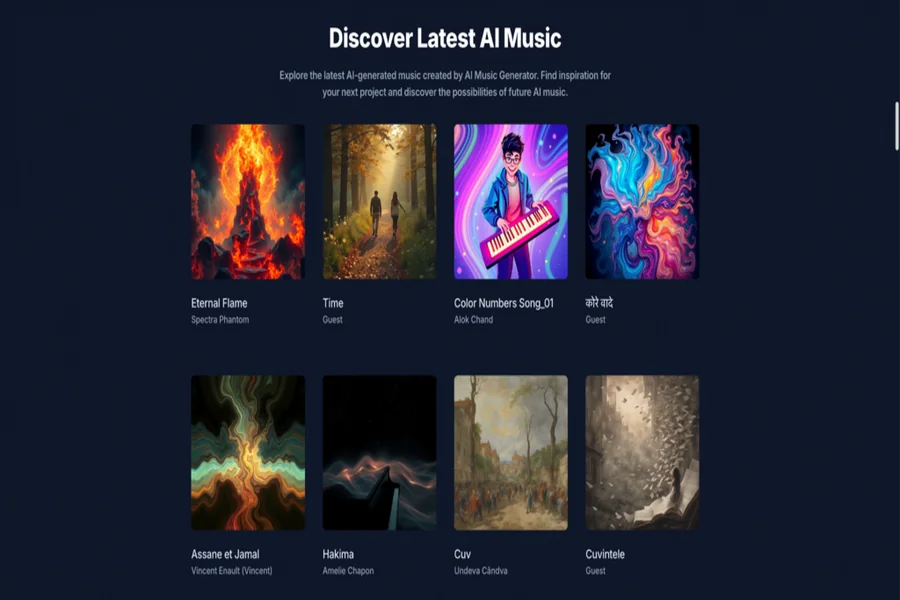
The AI Song Maker function on the platform also supports broader style and genre selection, which can be layered on top of a text description for more targeted results.
VII. Putting It All Together: The Full Zero-Budget Audio Pipeline
Here’s the complete, repeatable workflow from script to final mix:
- Write the script using a large language model. Mark every scene with an emotional label.
- Create a scene-emotion table before touching any audio tool.
- Open Musick AI, switch to Instrumental mode, and generate 2–3 versions per scene using specific mood prompts.
- Download sound effects from Freesound or Pixabay that match scene environments and action.
- Import everything into a free video editor and sync audio to picture.
- Trim and crossfade music at scene transitions. Keep music slightly under dialogue levels.
- Export and check the final cut on both speakers and earphones — the two most common viewing contexts.
This pipeline doesn’t require a music degree, a composer, or a budget. The combination of a capable AI Music Generator and a few free sound libraries produces results that are genuinely competitive with low-budget professional productions. The entire audio post-production process — once the workflow is understood — can realistically be completed in a single day for a short film under ten minutes.

